AI Schedule Assistant
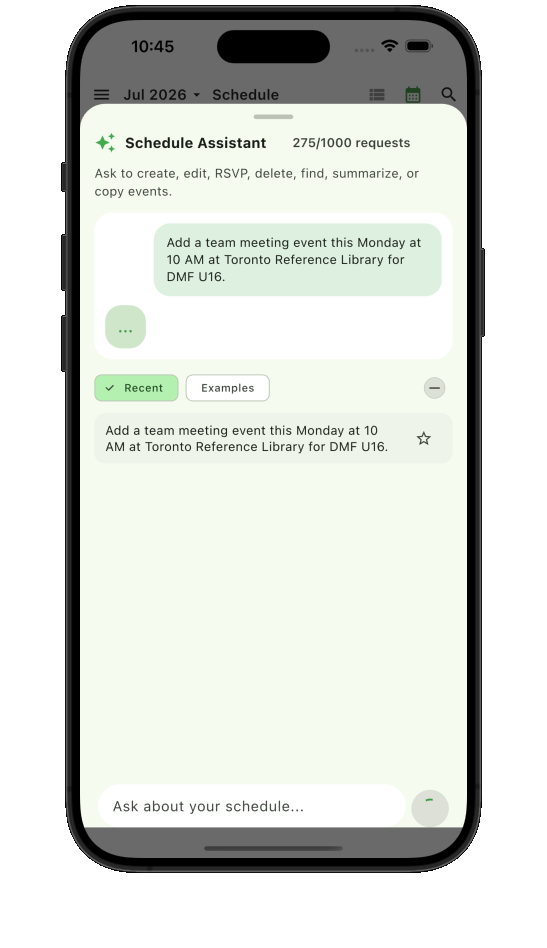
Create, edit, delete, find, summarize, RSVP, and copy with natural requests.
 Teamnest Pro
Features
Use AI to handle schedule work, switch between event views, customize calendars, send richer messages, support more languages, and manage teams with the controls organizers expect.
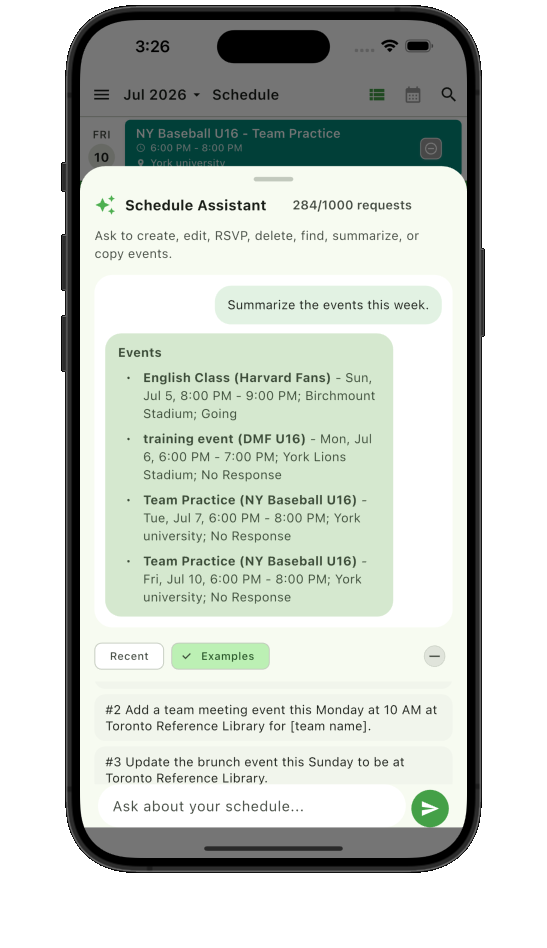
1. AI Schedule Assistant
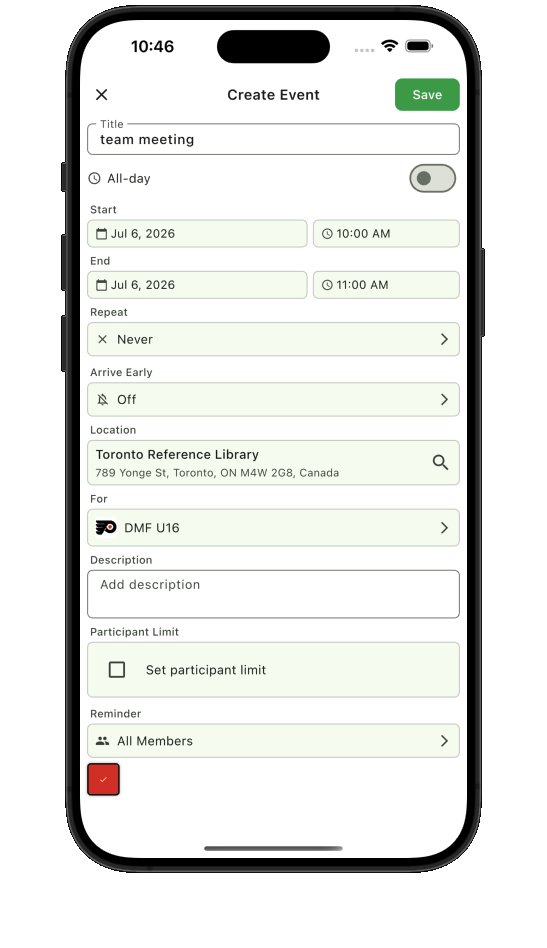
Create, edit, delete, find, summarize, RSVP, or copy events without tapping through every field by hand. The assistant keeps the request tied to the correct team calendar.
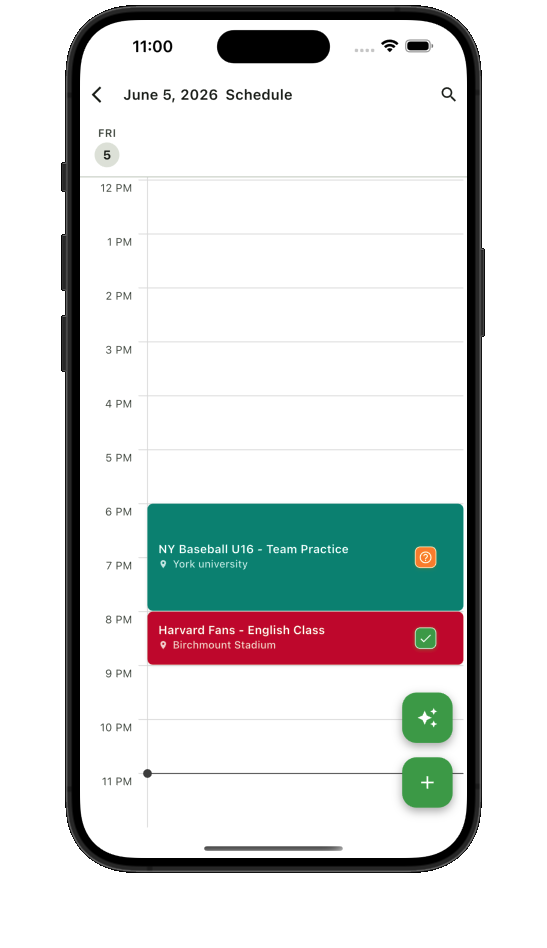
2. Three event views
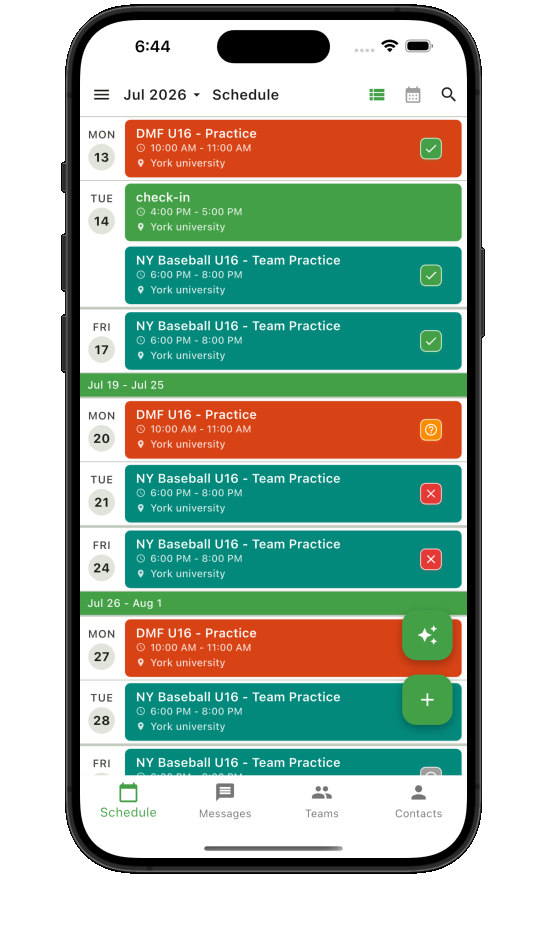
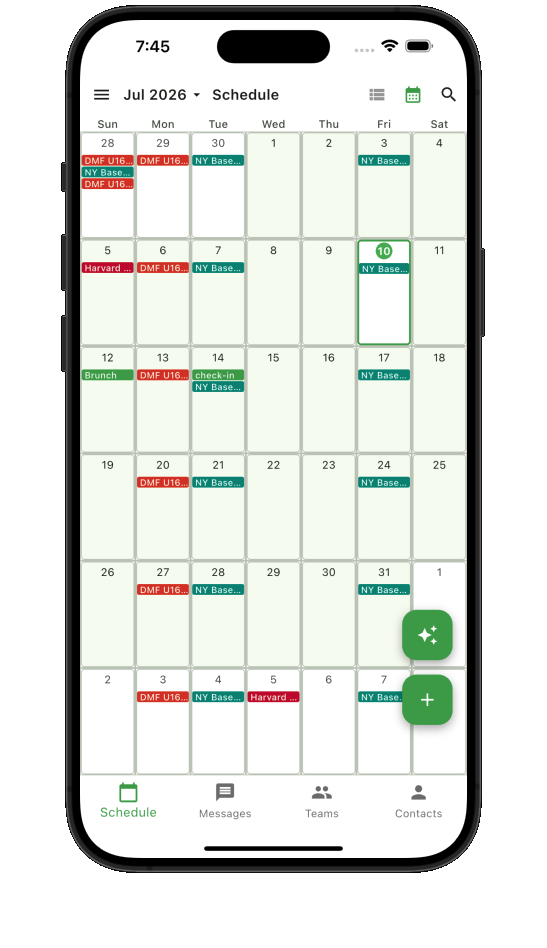
Teamnest Pro supports quick scanning, monthly planning, and focused day schedules, so members can use the view that fits the moment. See how these views work together in the Teamnest Pro team calendar app.
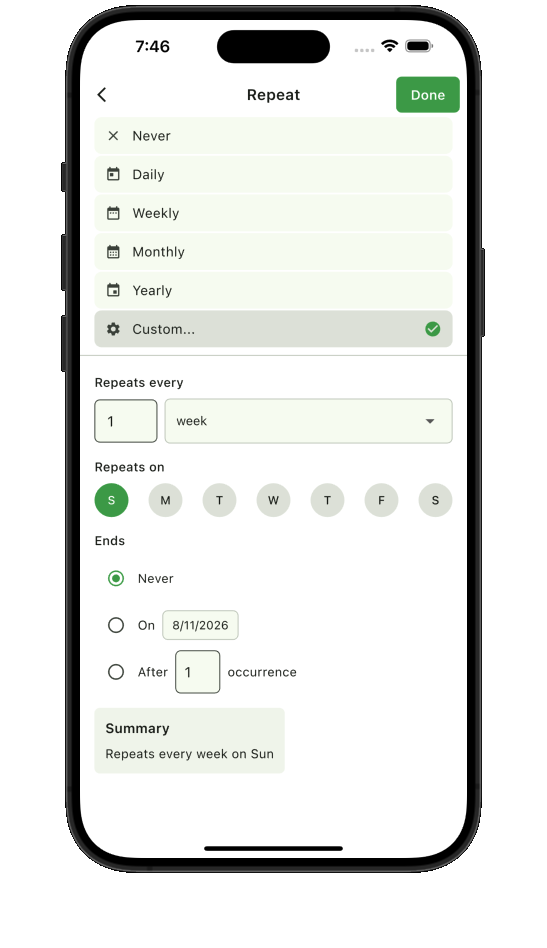
3. One-time or recurring events
Set one-time events for special plans, or repeat practices, classes, games, and meetings on the schedule your team actually follows.
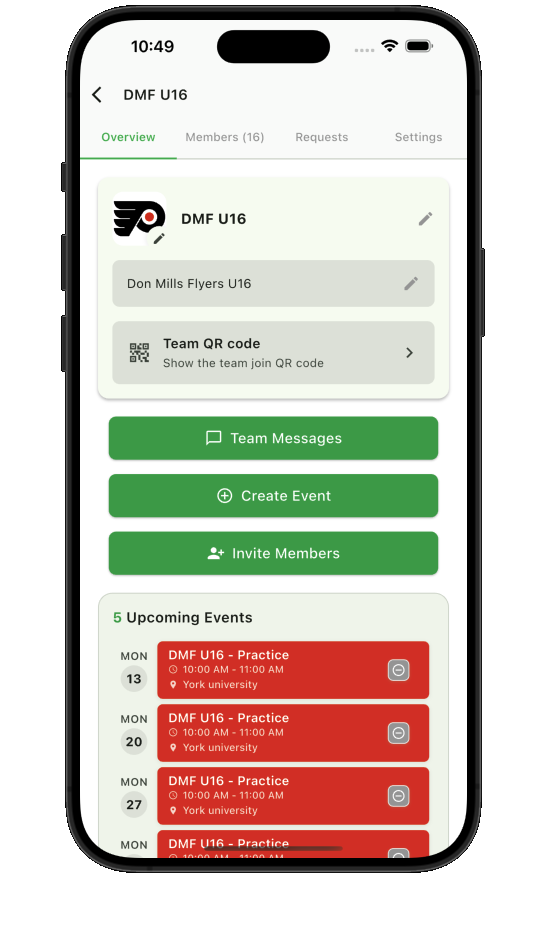
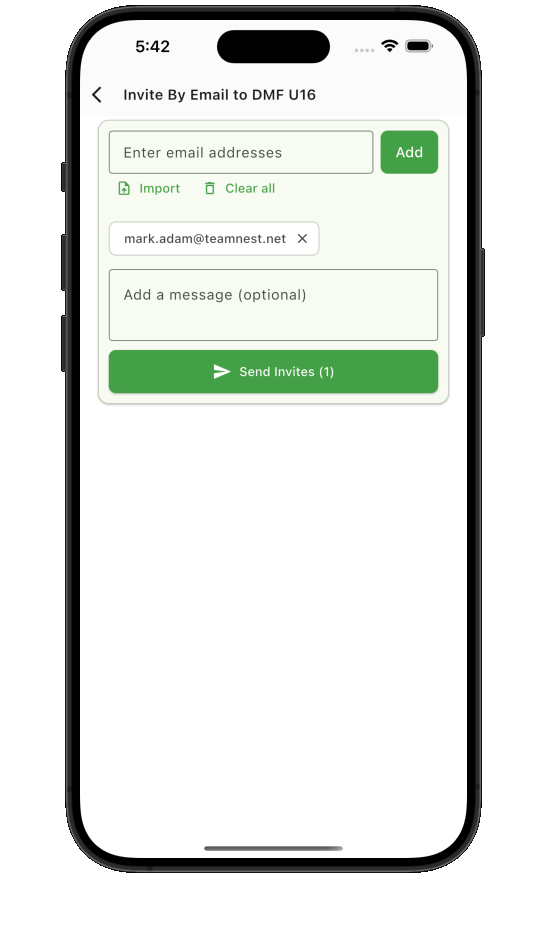
4. Join by QR code or invitation
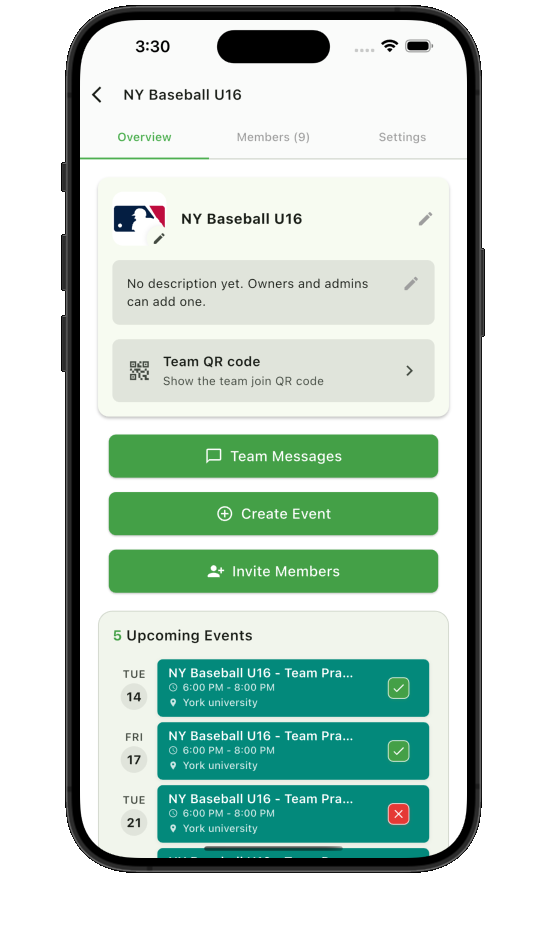
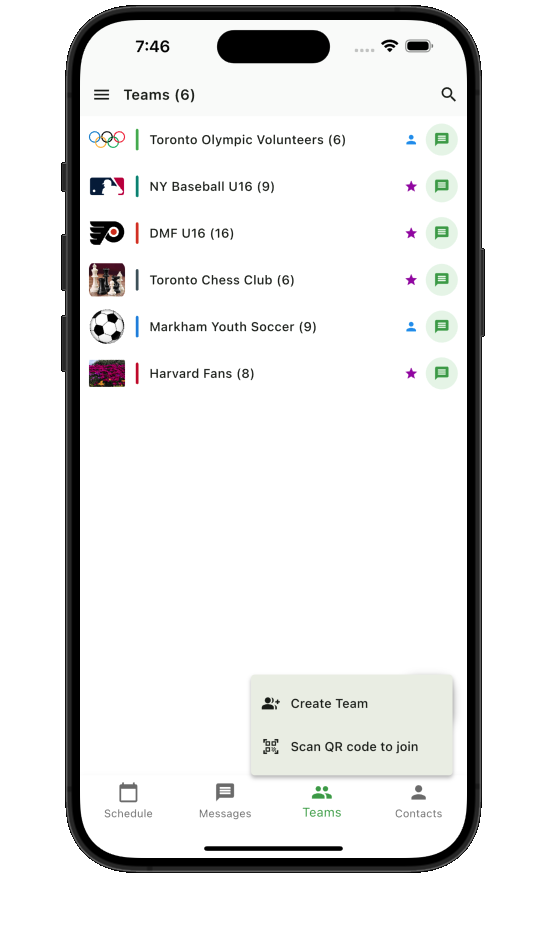
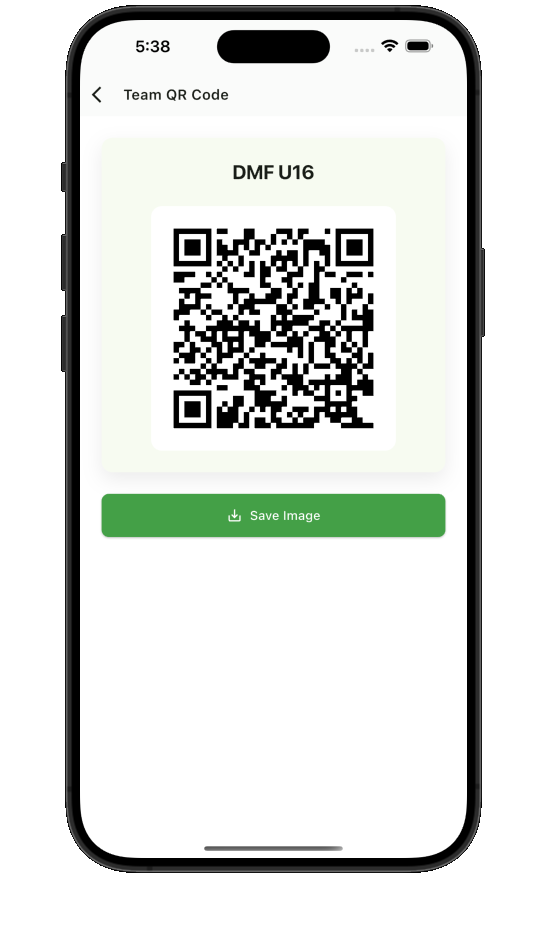
Team QR codes and invitations make onboarding simple for families, players, volunteers, and coaches. For practices and games, explore the complete sports team scheduling workflow.
5. Direct, team, and rich messages
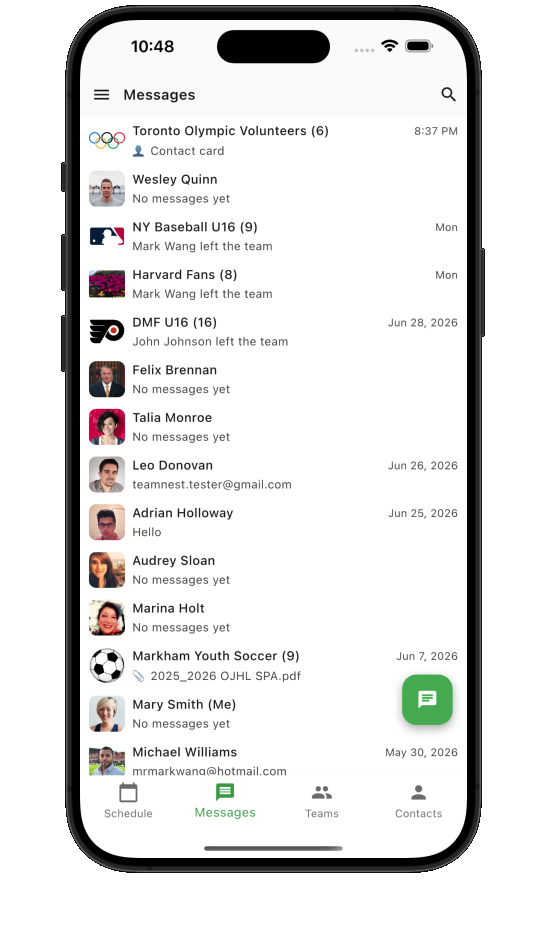
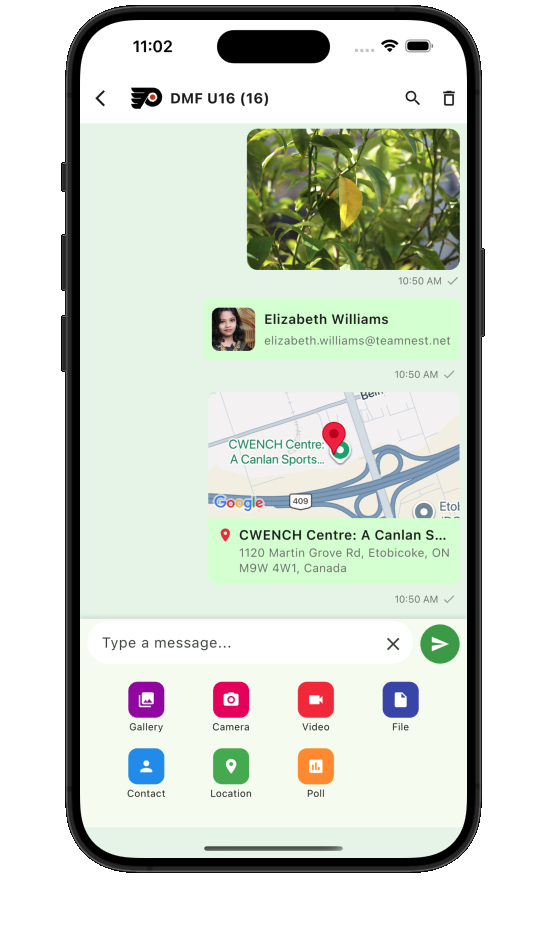
Use personal direct messages and team conversations alongside gallery, camera, video, file, contact, location, and poll messages.
6. RSVP and response status
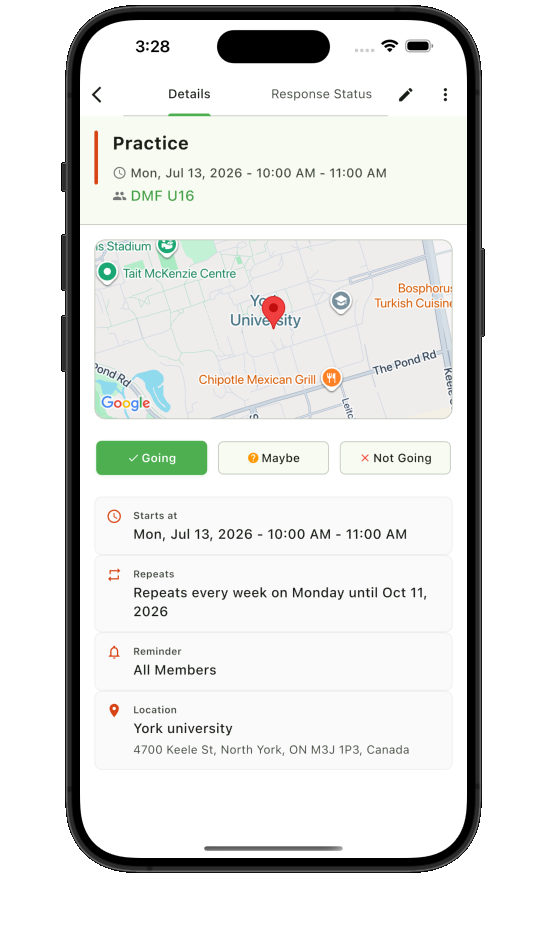
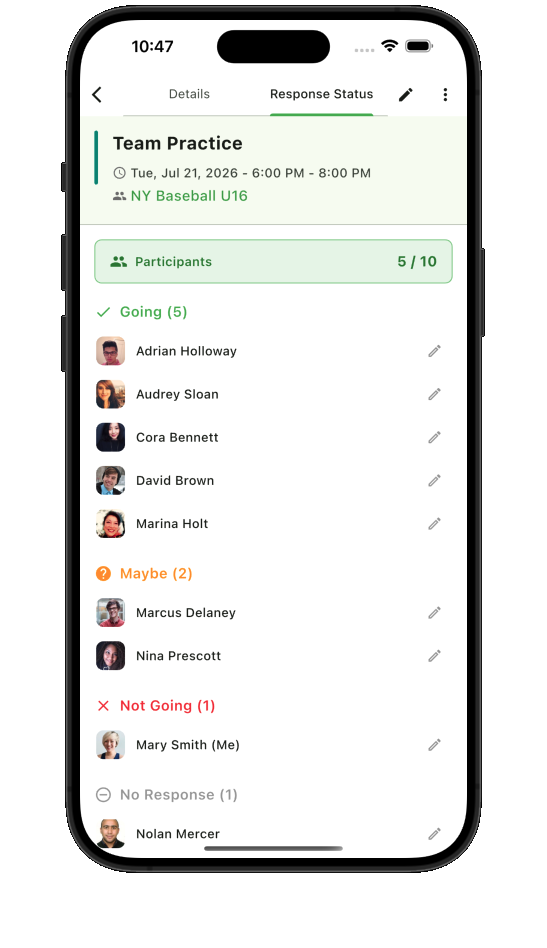
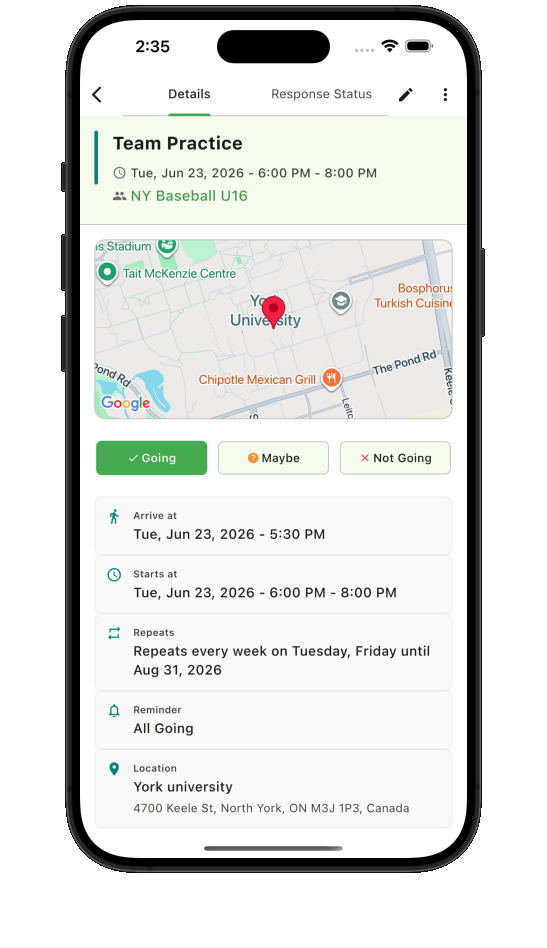
Members can respond directly from the event details screen, while organizers can review response status before practices, games, meetings, and classes. Learn how organizers can use team RSVP tracking before an event.
7. Multiple reminders and notifications
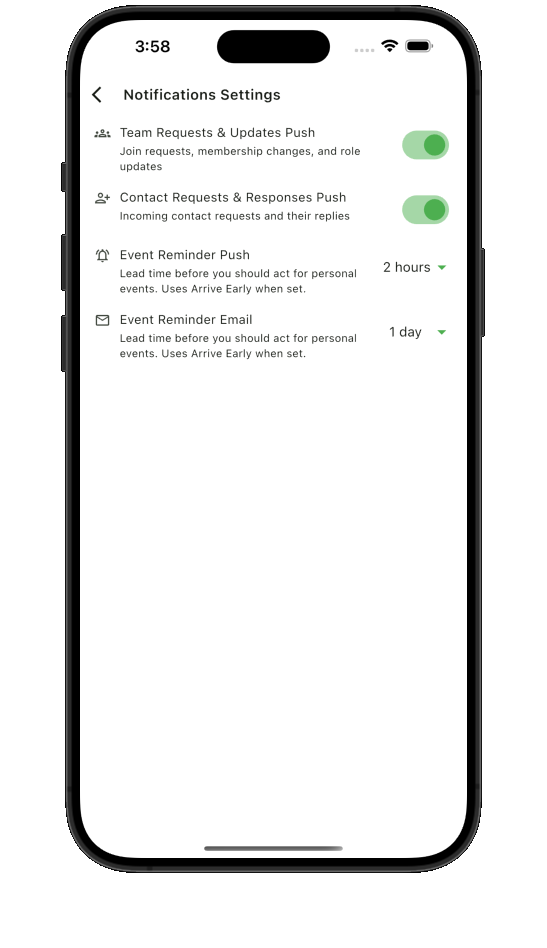
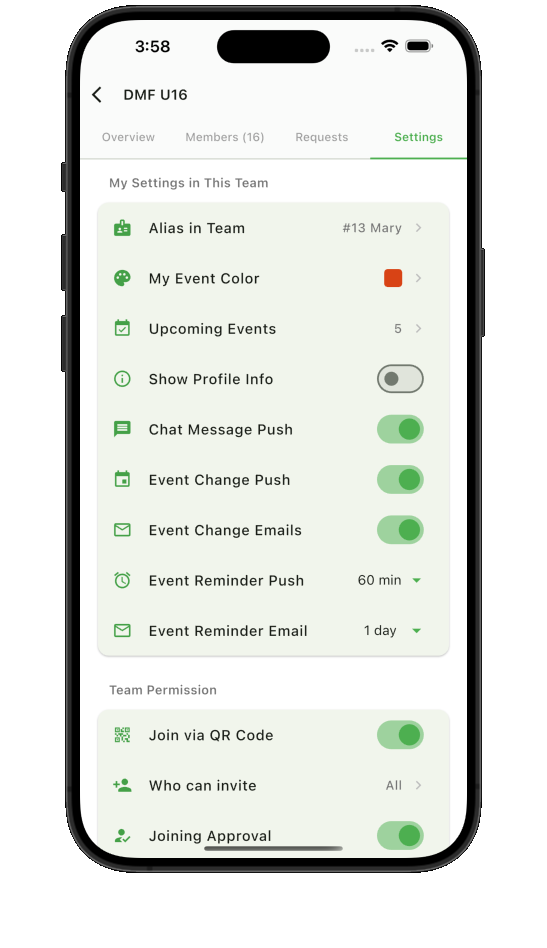
Set arrival timing, reminders, and audience-specific notifications so members get the right prompt for the event and their response status.
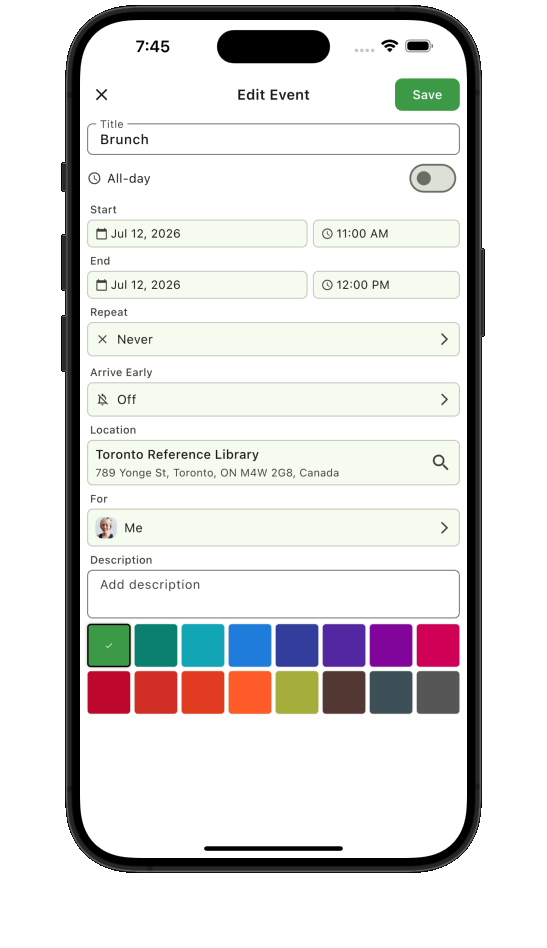
8. Custom event colors
Give each team or personal calendar its own color so practices, games, meetings, and personal plans are easy to tell apart at a glance.
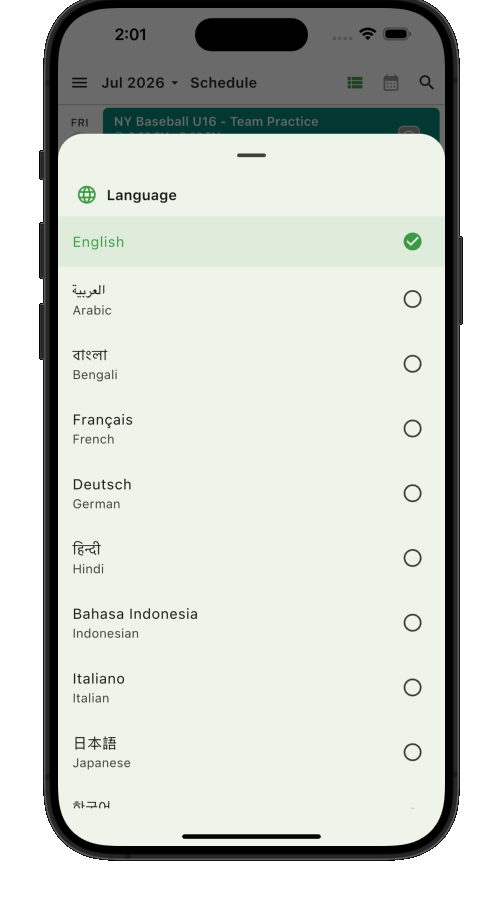
9. 21 supported languages
Choose from 21 supported languages so families, players, volunteers, and organizers can coordinate schedules in a familiar interface.
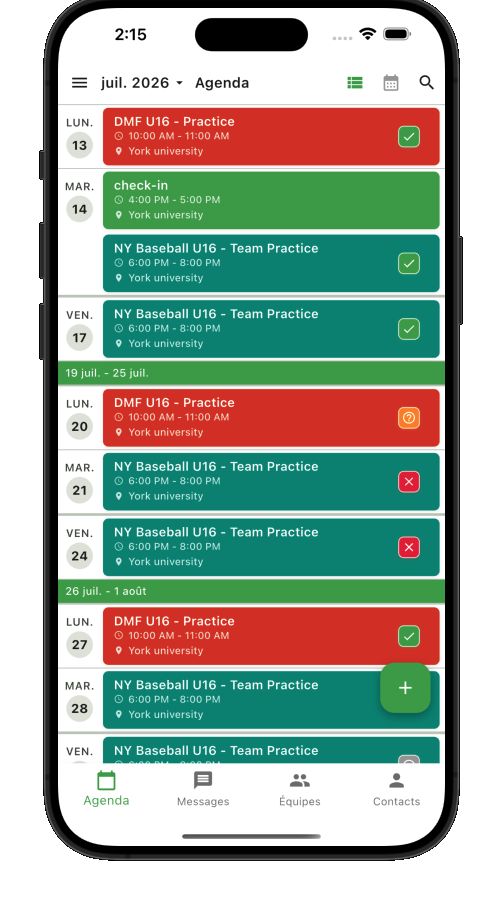
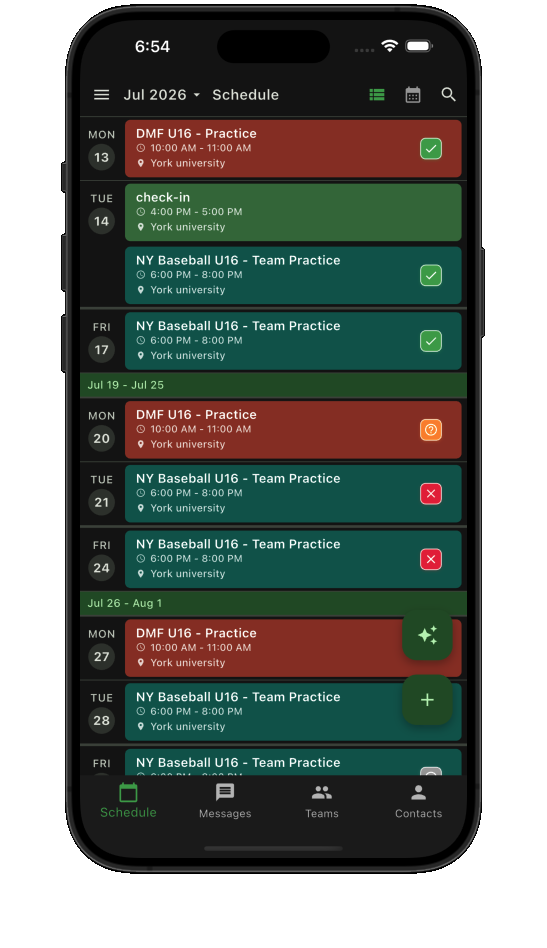
10. Two themes
Teamnest Pro supports both light and dark themes, so members can choose the look that feels clearer for daily planning.
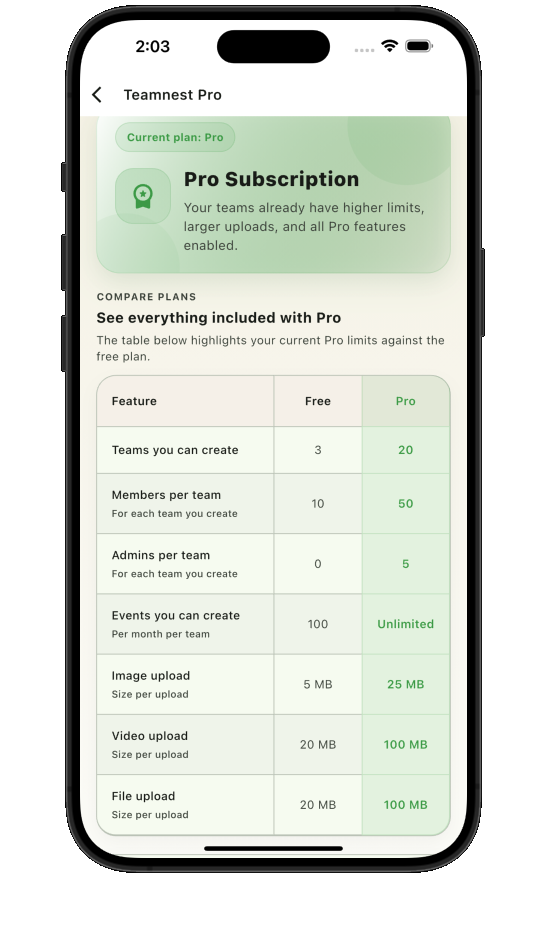
11. Free and Pro plan
The Free plan fits personal schedules and small groups. Pro adds the capacity, controls, and team management that larger or professional organizations need. Compare Free and Pro limits.
12. Google Calendar feed
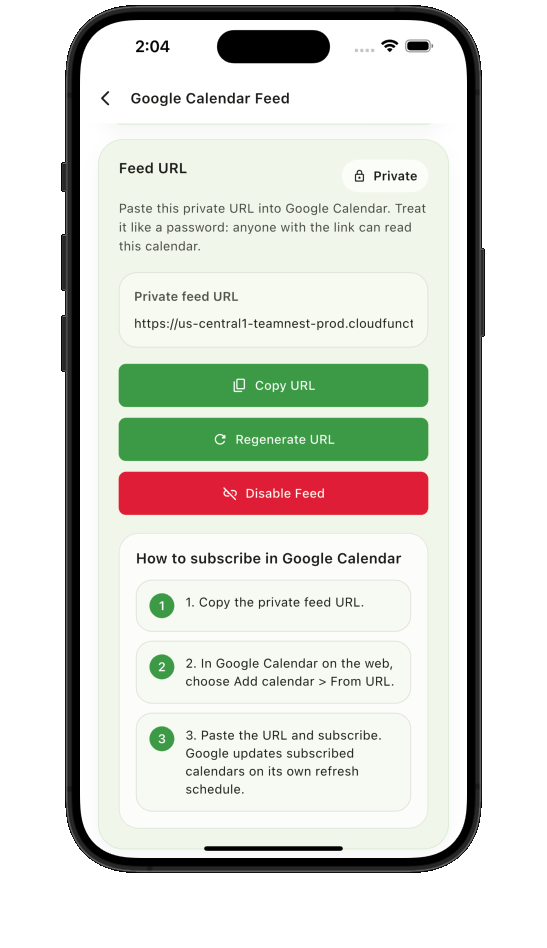
Copy a private calendar feed URL and add it to Google Calendar, so team events stay visible beside personal and work calendars.
Feature index
Create, edit, delete, find, summarize, RSVP, and copy with natural requests.
Use list, month, and day views for different scheduling moments.
Create one-time events or repeating schedules for ongoing teams.
Invite members directly or let them join with a team QR code.
Use personal messages, team messages, and rich message types.
RSVP from event details and see who is going, maybe, or not going.
Send reminders and notifications to the right members at the right time.
Separate team events and personal events with calendar colors.
Let members use Teamnest Pro in the language they prefer.
Choose light or dark mode for schedule planning.
Use Free for personal or small groups, and Pro for bigger or professional teams.
Add team schedules to Google Calendar with a private feed URL.